


A PC crash can happen in several ways: sudden freezes, constant restarts, unexpected shutdowns, black screens, and, of course, the dreaded Blue Screen of Death (BSOD). No matter the symptoms, a crash is usually your computer telling you that something isn’t working quite the way it should.
In many cases, the cause is software-related: outdated drivers, malware, corrupted system files, or too many programs putting demand on your system’s memory. In other cases, the issue could be hardware-related, stemming from things like overheating, failing RAM, or a damaged hard drive.
When the issue is caused by software or system settings, there are a few fixes you can safely try at home. Other issues may require more caution. If your PC crashes while accessing files, makes unusual drive noises, or keeps restarting after disk errors, continuing to use it can increase the risk of losing your data.
In this guide, we’ll walk you through some common causes and safe fixes, and we’ll explain when it’s time to contact Secure Data Recovery for help protecting your files.
Start by Checking What Caused the Crash
Before you try any fixes, it’s worth checking whether Windows has already recorded any clues about the crash. The easiest place to start is Event Viewer — a built-in Windows tool that logs system activity, including hardware faults, driver errors, unexpected shutdowns, and critical system warnings.
To open Event Viewer in Windows 10 or 11:
- Right-click the Start button
- Select Event Viewer
- Go to Windows Logs > System
- Look for red error icons or Critical events around the time your PC crashed
- Click an entry to view more details
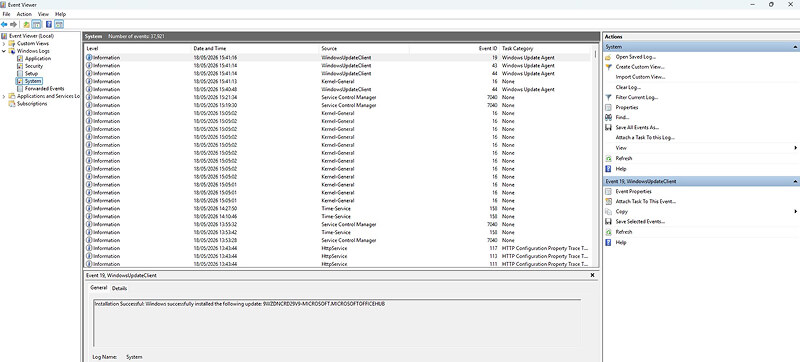
The messages may be a little technical, but you don’t need to understand every line. Look for repeated patterns, specific device names, driver references, or errors that appear just before each crash took place. These clues can help you determine whether your issue is related to overheating, storage, memory, drivers, or software.
If you’re planning to seek professional assistance, it can be helpful to save the log from Event Viewer. You can do this by right-clicking System and selecting Save All Events As. By doing this, you can give technicians more context for when they attempt to diagnose the issue.
Before You Troubleshoot: Protect Your Data First
Before you move into attempting any fixes, take a moment to consider whether your files are at risk. Frequent crashes can sometimes point to failing storage hardware, especially if the file system freezes while opening files, copying data, or booting from the drive.
If your computer is stable enough, back up your most important files before running any repair tools or modifying system settings.
Avoid repeatedly forcing restarts if your PC locks up during file access. Also, ensure you do not run CHKDSK, defragmentation, or other disk repair tools if you hear clicking or grinding noises from your drive, or if your drive often disappears from Windows or causes repeated crashes.
If your data is irreplaceable, your safest option is to stop here and contact a professional. Continuing to troubleshoot a failing drive can hurt your chances of successfully retrieving your data.
Fixing a PC That Keeps Crashing
Computers can crash for many reasons, from simple software glitches to serious hardware problems. In this section, we’ll talk through seven common reasons that may be causing your PC to crash repeatedly. And for each one, we’ll list a few simple steps that could help you solve it by yourself.
1. Overheating
Overheating is one of the most common reasons for random crashes, sudden shutdowns, and generally poor performance. A few reasons this could happen is because your computer’s airflow is blocked, its vents are covered, or your system is running too many demanding programs.
Here’s how to fix it:
- Close any unnecessary programs or browser tabs.
- Check that vents and fans are not blocked.
- Turn off your computer and let it cool for 5–10 minutes.
- Use compressed air to gently clear dust from vents and fans.
- Restart the system and monitor fan noise and temperature.
Avoid using liquids or cloths on your computer’s internal components — this can sometimes damage them.
2. Memory Pressure — or Not Enough RAM
RAM is your computer’s short-term working memory. If you have too many programs competing for it, your PC may freeze, slow down, crash, or restart unexpectedly.
Here’s how to check and resolve it:
- Press Ctrl + Shift + Esc to open Task Manager.
- Go to Performance > Memory.
- Check how much RAM is currently in use.
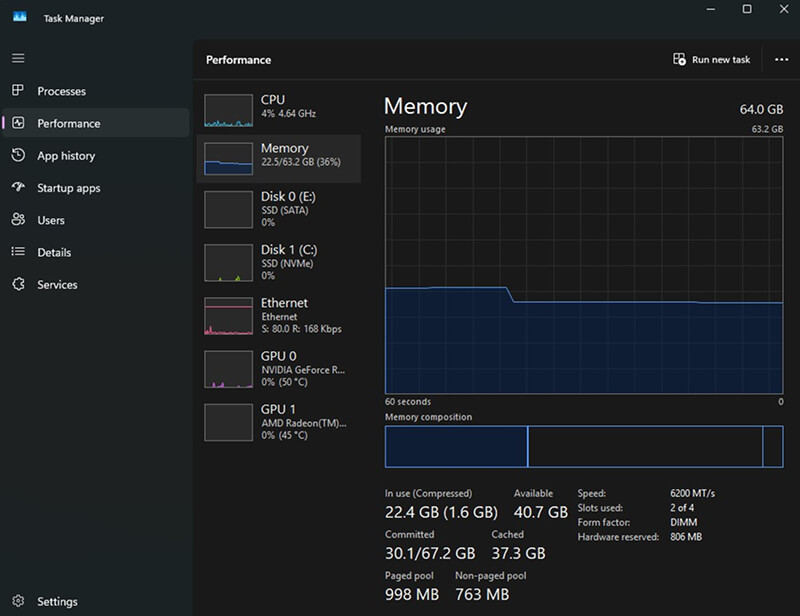
- Close unnecessary apps and background processes.
- Disable unneeded startup programs in the Startup apps tab.
- Consider upgrading your RAM if usage is consistently higher than 85-90%. If you’re not sure how to install RAM, it’s best to consult a professional for help to do so.
3. Malware or Virus Infection
Malware can corrupt your system’s files, hijack its processes, slow performance, and cause expected crashes. Other warning signs include frequent pop-ups, strange settings changes, fake virus alerts, or apps opening on their own.
Here’s how to fix it:
- Hold Shift while selecting Restart.
- Go to Settings > System > Recovery > Advanced startup
- Select Restart Now.
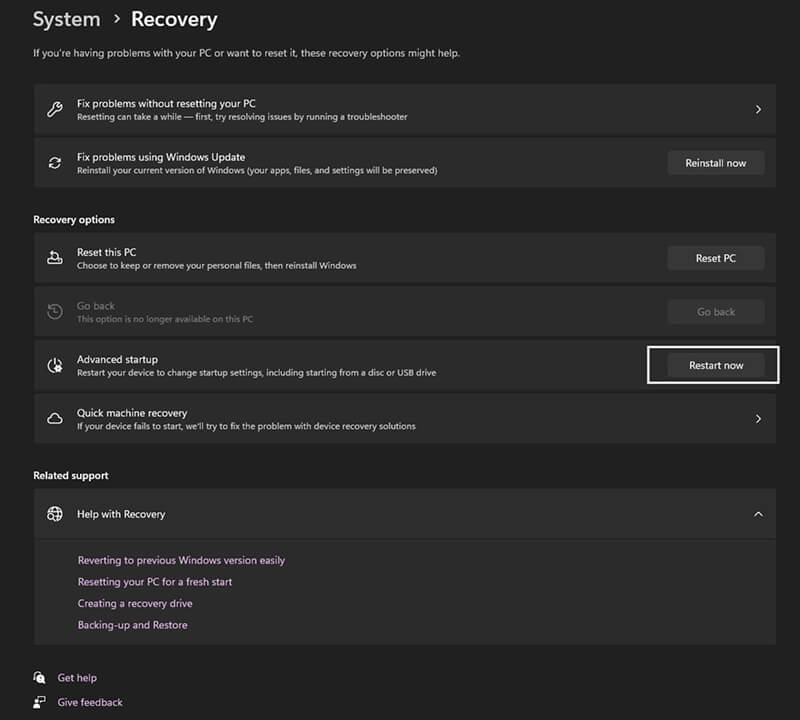
- Choose Safe Mode or Safe Mode with Networking.
- Open your antivirus software.
- Update virus definitions if needed.
- Run a full system scan.
- Remove or quarantine any detected threats.
Antivirus programs are essential — but they may not always catch all types of malware. It’s crucial to keep your antivirus software up-to-date, and in general, be cautious when you’re about to click on an unfamiliar link or download from an unknown source.
4. Outdated or Faulty Drivers
Drivers are what let Windows communicate with hardware like graphics cards, storage devices, printers, and network adapters. If your drivers are outdated, corrupted, or have recently been improperly updated, this can trigger crashes, BSODs, display glitches, and system crashes.
Here’s how you can update or repair your drivers:
- Search for Device Manager in the Start menu.
- Select the device you want to check.
- Right-click it and choose Update driver.
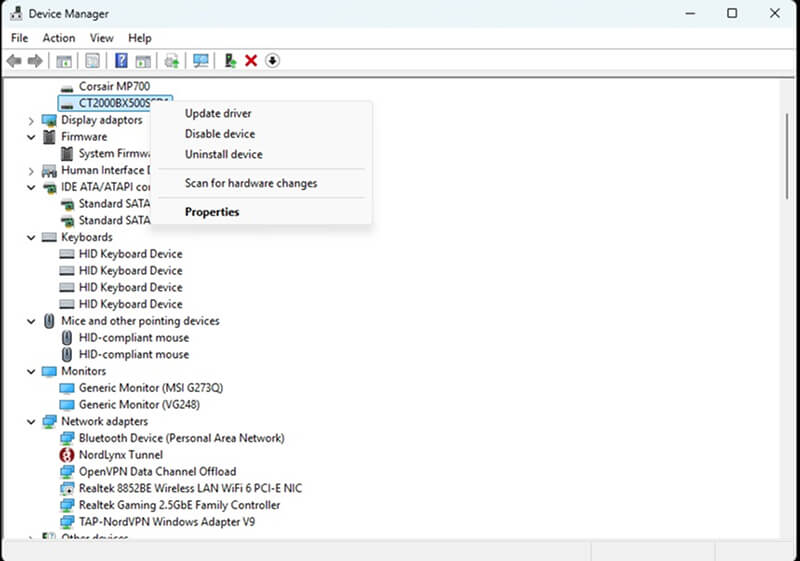
- Select Search automatically for drivers.
- If Windows isn’t able to find a driver update for your device, check the manufacturer’s website.
- If crashes began after a recent update, right-click the device and choose Properties > Driver > Roll Back Driver.
If you’re not sure which device driver may be causing the issue, keep an eye out for a triangular icon with an exclamation mark next to a device category — this means that a device in that category isn’t working as it should.
5. Corrupted System Files or Registry Issues
Windows relies on system files and registry settings to run properly. If these become corrupted for any reason, they may result in crashes, startup failures, app errors, and general instability. Avoid using registry cleaners — these can sometimes cause more issues than they solve.
How to fix it:
- Search for Command Prompt.
- Right-click and select Run as administrator.
- Run this command: DISM /Online /Cleanup-Image /RestoreHealth
- Once it’s complete, run: sfc /scannow

- Restart your computer.
DISM repairs the Windows image, while SFC checks and restores damaged system files.
6. Fragmented Data or Drive Performance Issues
If your computer has Windows installed on an SSD, this is unlikely to be the cause of your issue: file fragmentation mainly affects traditional hard disk drives (HDDs). On older or heavily used HDDs, fragmented files can slow performance and contribute to instability.
Here’s how you can address this issue:
- Search for Defragment and Optimise Drives.
- Select your primary HDD (the drive where your Windows is installed).
- Click Optimise.
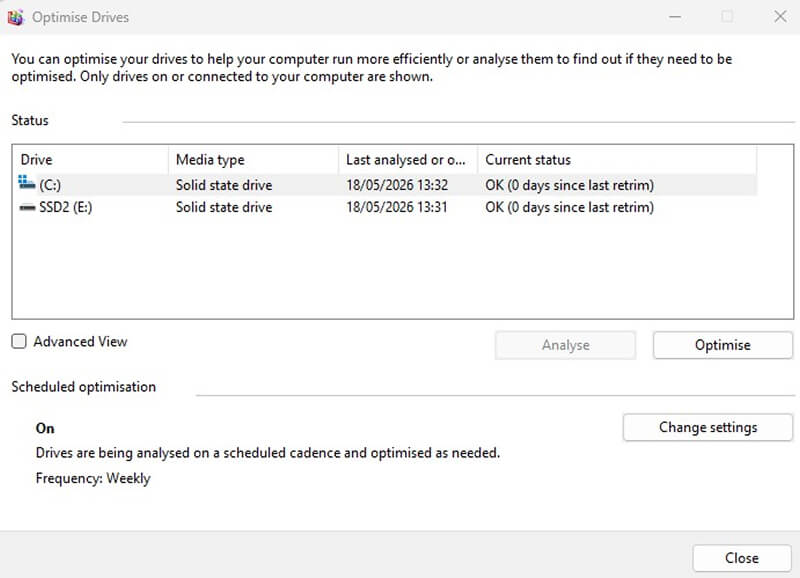
- Wait for the process to complete.
If your main drive is an SSD, do not manually defragment it. Windows handles SSD optimization differently, and unnecessary defragmentation can reduce drive lifespan.
Before you start this process, make sure to back up your important files first, and avoid this step if your drive is clicking, freezing, or showing signs of failure.
7. Bad Sectors or Failing Storage Drive
Bad sectors are parts of a hard drive that are damaged, where data can no longer be read or written properly. These parts of your hard drive can cause crashes, freezes, missing files, slow access, and error messages. Unusual sounds like clicking, grinding, or whining may point to physical drive failure.
Here’s how you can carefully check for bad sectors:
- Back up important files if the system is stable enough.
- Open Command Prompt as administrator.
- Run the following command, replacing “C” with the drive letter of your Windows drive.: chkdsk C: /f
Warning: Do not run CHKDSK if the drive is clicking, disappearing from Windows, freezing the system, or making unusual noises. In these cases, running CHKDSK — and even just continuing to use your computer — can worsen the damage and reduce the chances of recovery.
When to Stop Troubleshooting and Seek Professional Help
Some crashes are safe to troubleshoot at home, but others can be a warning sign of a more serious storage failure. You should stop troubleshooting and seek professional help if:
- The drive makes clicking, grinding, or whining sounds
- Your PC crashes whenever you access certain files or folders
- The drive disappears from Windows, BIOS, or File Explorer
- CHKDSK hangs, fails, or causes the system to freeze
- The files on the drive are critical or irreplaceable
These symptoms can point to physical damage, failing sectors, or a drive that has become unstable. Continuing to restart your computer, run repair tools, or copy data can put extra stress on your drive, and make recovery more difficult.
Professional recovery starts with a comprehensive diagnostic test, followed by safe imaging — this preserves your drive’s current state and the data on it. In severe cases, engineers may use a cleanroom environment and advanced tools to recover data from damaged devices.
Secure Data Recovery offers free diagnostics, a 96% success rate, and a No Data, No Recovery Fee guarantee, so you only pay if we recover your files.
Tips to Prevent Future PC Crashes
No computer is completely immune to crashing from time to time. But with regular maintenance, you can reduce the risk it happens too frequently, and help protect your data:
- Keep your computer’s vents and fans clean to prevent overheating and airflow problems.
- Update Windows, drivers, and antivirus software so your system has the latest stability and security fixes.
- Restart or shut down regularly instead of leaving your PC in sleep mode for long periods.
- Handle your computer carefully, especially laptops and external drives, to avoid impact and shock-related damage.
- Check system requirements before installing demanding games or software.
- Monitor drive health with SMART tools or manufacturer diagnostics to catch early signs of failure.
- Back up important files regularly to an external drive or cloud service.
- Uninstall software properly using Windows settings or the program’s official uninstall tool.
These habits won’t prevent every issue — but they can help keep your PC stable and reduce the chance of sudden data loss.
Get Your PC Stable Without Risking Your Data
PC crashes are common, but if they happen to you a lot, it’s not something you should ignore — especially if it happens alongside file errors, unusual drive noises, or failed repair tools. Many causes can be fixed with careful troubleshooting, but sometimes, repeated crashes can signal failing storage hardware, which puts your data at risk.
If your files matter and you can’t afford to lose them, or your PC keeps crashing despite your best efforts, professional help is the best next step you can take.
Secure Data Recovery offers free diagnostics, a No Data, No Recovery Fee guarantee, and expert recovery services for damaged or failing drives.
Call us at 0800-102-6925 today, or start a case online to protect your data.


